
Digital Banking FAQs
Digital Banking is live as of Tuesday, March 17. Please download the mobile app from the Apple or Google Play store.


The new mobile app looks like this 

Digital Banking is live as of Tuesday, March 17. Please download the mobile app from the Apple or Google Play store.
The new mobile app looks like this
Then enter your existing Username and Password. If your existing Password does not meet new password safety requirements, you will be prompted to update your password after initial Login.
To “Enroll”, simply complete the following steps for the web browser or mobile app online banking:
Then select “Enroll”
Need Assistance. If you need any help with the steps listed above, please call PAHO/WHO FCU Member Services at 866-724-6328 (toll-free), Monday - Friday 8:00am - 3:00pm ET for assistance.
Yes, you will need to download the new PAHO/WHO FCU mobile app from the Apple or Google store.
The new mobile app looks like this
You will also need to delete the existing/old mobile app as it will no longer work.
The existing/old mobile app looks like this
Google Play Store 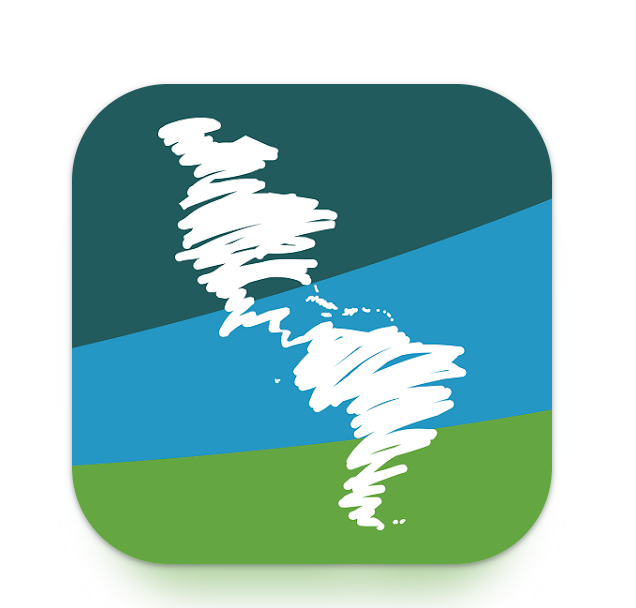
Apple App Store 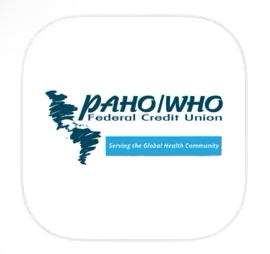
Yes, you can reset your “Password” using the “Need Login Help?” on the Login screen. You will receive a reset verification code to your email we have on file. If you do not receive the email, call PAHO/WHO FCU Members Services at (202) 974-3453 or 866-724-6328 (toll-free), Monday - Friday 8:00am - 3:00pm ET or send a secure email to fcu@pahowhofcu.org for assistance.
No, you can select “Remember me” on the Login page. Then, you will only need to enter a verification code if you log in from a different device or IP location or if you have not logged in to the system for period of time.
Yes, you will see all the accounts that you are currently a joint owner on in your online banking profile.
If you need assistance with accessing or using the new online banking app, please call PAHO/WHO FCU Member Services at (202) 974-3453 or 866-724-6328 (toll-free), Monday - Friday 8:00am - 3:00pm ET; or send a secure email to fcu@pahowhofcu.org. Member Services can help you with all your questions, including:
Yes, you will sitll be able to deposit checks through the new app.
No, your Bill Pay account and recurring payments, history, and payees, will transfer into the new system.
If you are currently enrolled in eStatements and eAlerts, you will still be enrolled.
If you are NOT currently enrolled in eStatements and eAlerts, and:
Yes, your current Alerts will NOT move over to the new system. You will need to set up the banking Alerts again.
Yes. The existing PAHOFCUCards Mobile app will continue to be available.
Yes, you can set up transfers between PAHO/WHO FCU accounts on which you are an owner or joint owner.
To transfer between your PAHO/WHO FCU accounts in Online Banking, follow the steps below:
1. LOGIN to Online Banking
2. Click the Transfer Money tab
3. Click the Between Your Accounts button
4. Select the account you would like to transfer from
5. Select the account you would like to transfer to
6. Type in the amount of your transfer
7. Enter the date of the transfer
a. Select a transfer frequency and end date to make this a recurring transfer (weekly, monthly, etc.)
8. Add an optional memo
9. Click the Continue button
10. Review your information and click Continue when you are finished
Your transfer will be completed on the date you selected.
To transfer funds to an account you own at another financial institution:
To withdraw funds from another financial institution:
Funds from external account transfers are typically available within a few business days.
Yes, you will need to set up your recurring external transfers again in the new online system through PLAID®, which is a financial services app that will allow you to make external transfers to and from your own account(s) at another financial institution or view your account balance(s) at other financial institutions.
No, the recurring internal transfers that you currently have set up in the existing online banking system will NOT need to be set up in the new online banking system
Login to Online Banking and click on “More” icon. Then select “Secure Message” from the option menu. If you are not able to login to Online Banking, then please send an secure an email to fcu@pahowhofcu.org or call PAHO/WHO FCU Member Services at (202) 974-3453 or 866-724-6328 (toll-free), Monday - Friday 8:00am - 3:00pm.
You can also view but not edit your contact information. To view your info:
Click on the “Round Avatar Icon” on the top left side of the page. Then click on the “Camera Icon”, select the file location where your avatar or photo image is stored. Once the image is uploaded the following message will appear: “Congratulations! Your profile picture has been updates.”
Customize Account Display – You can customize the way your accounts are displayed (in a list or each account summarized in an easy-to-read tile/box.
Account Balances – Your current balance for each account is displayed and the total available balance across all accounts is located on the top left of the dashboard.
External Transfers with PLAID® – You can make external transfers to and from your own account(s) at another financial institution or view your account balance(s) at other financial institutions. You will also be able to set up recurring transfers to other financial institutions.
Credit and Debit Card Management – You can view and manage your credit and debit cards within the new online banking system. Plus, you will have access to additional tools designed to help you manage your card securely and conveniently You will no longer need to Login to a separate app to do the following activities on:
The existing PAHO/WHO FCU Cards Mobile app will continue to be available. This app will allow you to obtain a virtual credit card to add to your wallet as well as perform other functions for debit and credit card.
Pay others with Zelle® – Immediately transfer money to other people directly between U.S Bank accounts, usually within minutes if both parties are enrolled in Zelle®. There is no fee to you for this service.
Credit score with SAVVYMONEY® – View your credit score. You will need to “opt in” and agree to the Terms and Conditions.
Wire Transfers (domestic and international) – Initiating a request for domestic and international wires.